Serve the tiles to BlueSky
All that is left to do is to serve our tiles to BlueSky.
For traditional Air Traffic Control simulations it is typically not necessary to see city level details.
This is why the default BlueSky background is one large texture of the world.
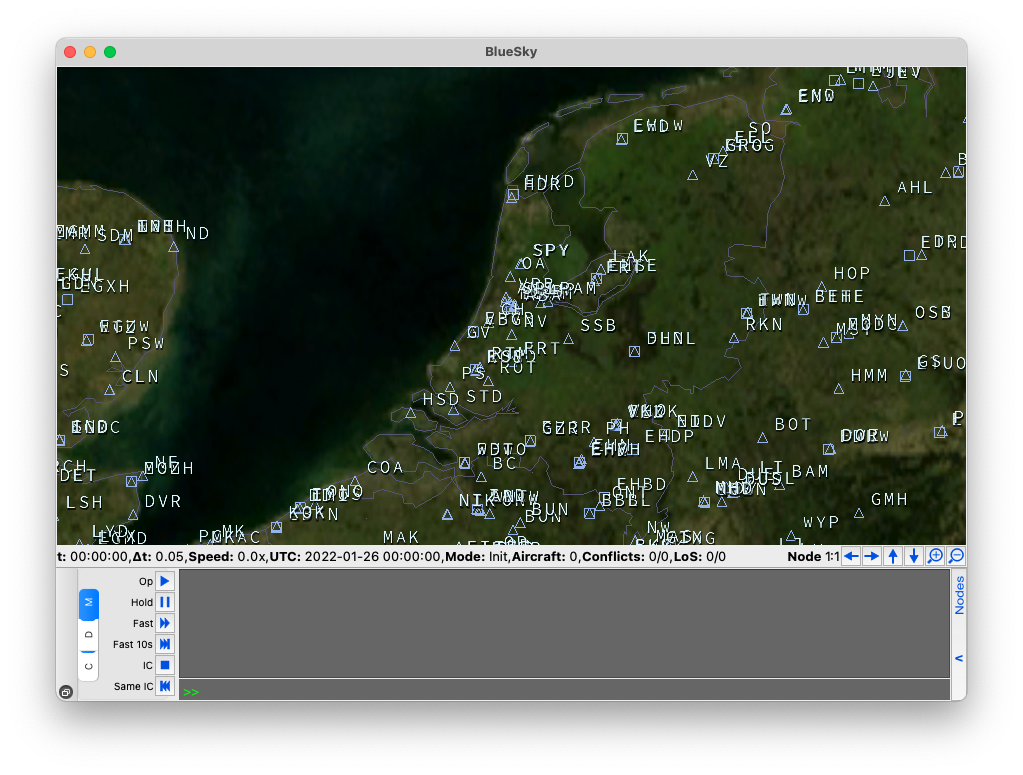
However, this for Urban Air Mobility simulations it is not very useful because at the city level you do not see any details about the city.
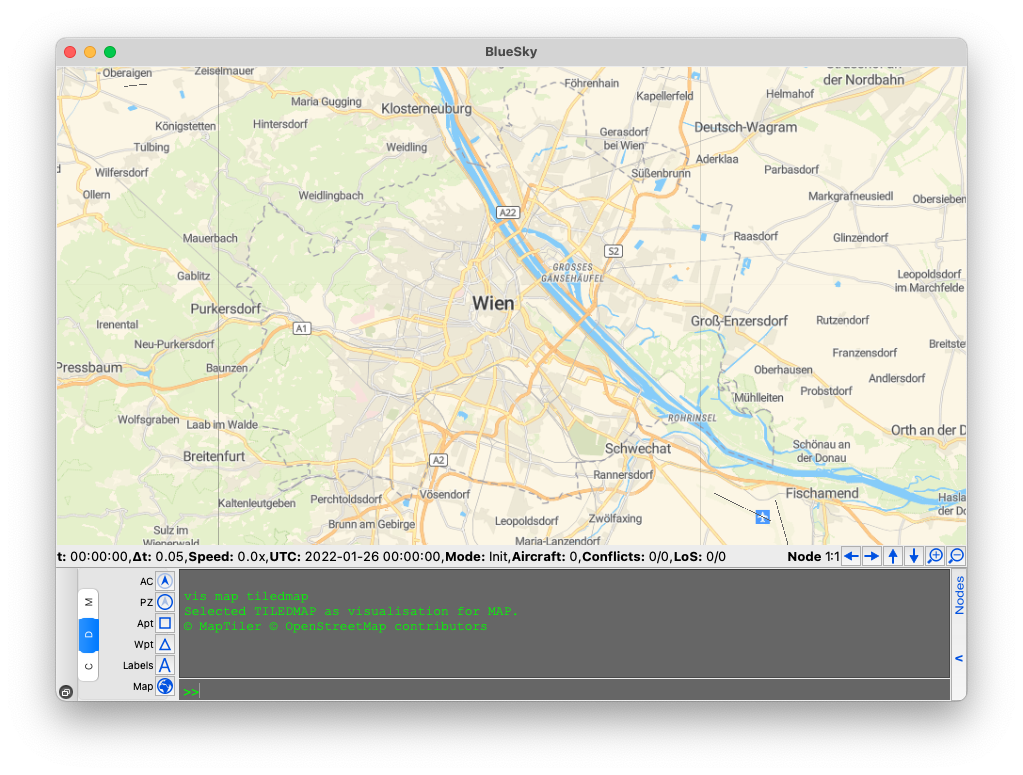
Showing a tiled map in BlueSky
Starting in 2021, there has been a concerted effort by the developers of BlueSky to make it the go-to Air Traffic Control Simulator for Urban Air Mobility. One of the important developments was the integration of tiled maps in to BlueSky.
To see the tiled map, just run the following on the BlueSky console,
VIS MAP TILEDMAP
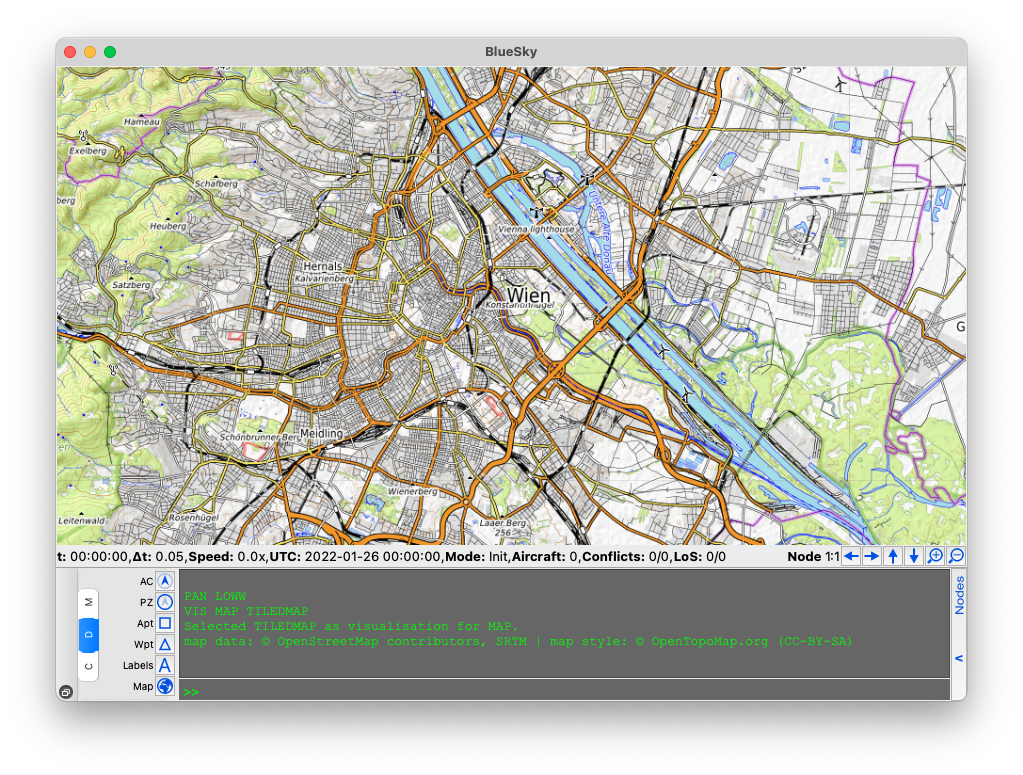
The default BlueSky tiled map is OpenTopoMap because the tiled map is open source.
Adding a different XYZ map
BlueSky is able to add any tiled map as long as they stick to the Slippy map convention. At the moment it is only able to add raster tiles. For a full list of available XYZ providers refer to xyzservices by GeoPandas.
You can add any tiled map to BlueSky by adding some information to the settings.cfg file
# Tiled map options
tilesource='maptiler'
tile_sources={
    'opentopomap': {
        'source': ['https://a.tile.opentopomap.org/{zoom}/{x}/{y}.png',
                    'https://b.tile.opentopomap.org/{zoom}/{x}/{y}.png',
                    'https://c.tile.opentopomap.org/{zoom}/{x}/{y}.png'],
        'max_download_workers': 2,
        'max_tile_zoom': 17,
        'license': 'map data: © OpenStreetMap contributors, SRTM | map style: © OpenTopoMap.org (CC-BY-SA)'},
    'maptiler': {
        'source': ['https://api.maptiler.com/maps/streets/{zoom}/{x}/{y}.png?key='],
        'max_download_workers': 20,
        'max_tile_zoom': 20,
        'license': '© MapTiler © OpenStreetMap contributors'
        }
    }
You can have a several tile_sources stored in a dictionary called tile_sources.
The variable tilesource decides which entry to use. I like to use maptiler
because they offer many free requests per month, all you need is to get an api key and add it
to the end of the source url.
Adding an XYZ map from TileServer GL
TileServer GL also provides XYZ services so it is also possible to add this to BlueSky.
Once the server is running, visit the homepage and click the XYZ button under the m2 style.
This will give you the following link,
http://localhost:8080/styles/m2/{z}/{x}/{y}.png

Now you can add this source settings.cfg. However, first you must change the {z} to {zoom}.
We added a license contribution to City of Vienna and OpenStreetMap since that is where the data comes from.
# Tiled map options
tilesource='m2'
tile_sources={
    'opentopomap': {
        'source': ['https://a.tile.opentopomap.org/{zoom}/{x}/{y}.png',
                    'https://b.tile.opentopomap.org/{zoom}/{x}/{y}.png',
                    'https://c.tile.opentopomap.org/{zoom}/{x}/{y}.png'],
        'max_download_workers': 2,
        'max_tile_zoom': 17,
        'license': 'map data: © OpenStreetMap contributors, SRTM | map style: © OpenTopoMap.org (CC-BY-SA)'},
    'maptiler': {
        'source': ['https://api.maptiler.com/maps/streets/{zoom}/{x}/{y}.png?key='],
        'max_download_workers': 20,
        'max_tile_zoom': 20,
        'license': '© MapTiler © OpenStreetMap contributors'
        },
    'm2': {
        'source': ['http://localhost:8080/styles/m2/{zoom}/{x}/{y}.png'],
        'max_download_workers': 20,
        'max_tile_zoom': 20,
        'license': '© OpenStreetMap contributors © City of Vienna'
        }
    }
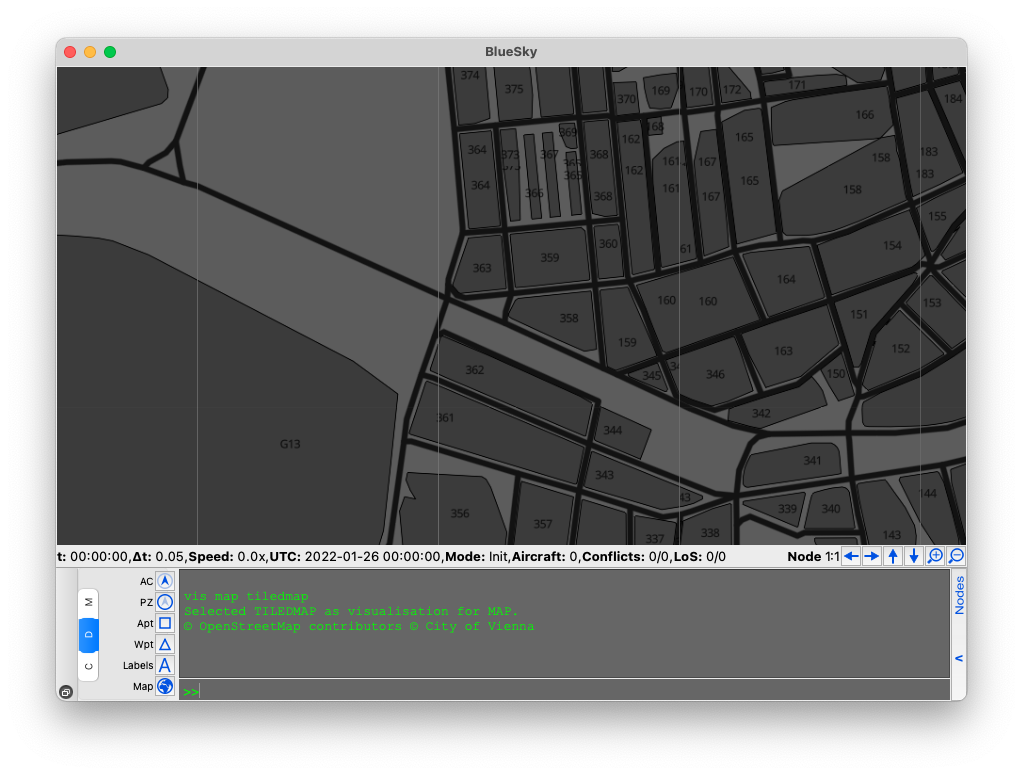
Now with the m2 we see

And zoomed we can see the building and geofence ids!